I tried switching to iPhone but this one Samsung feature brought me right back
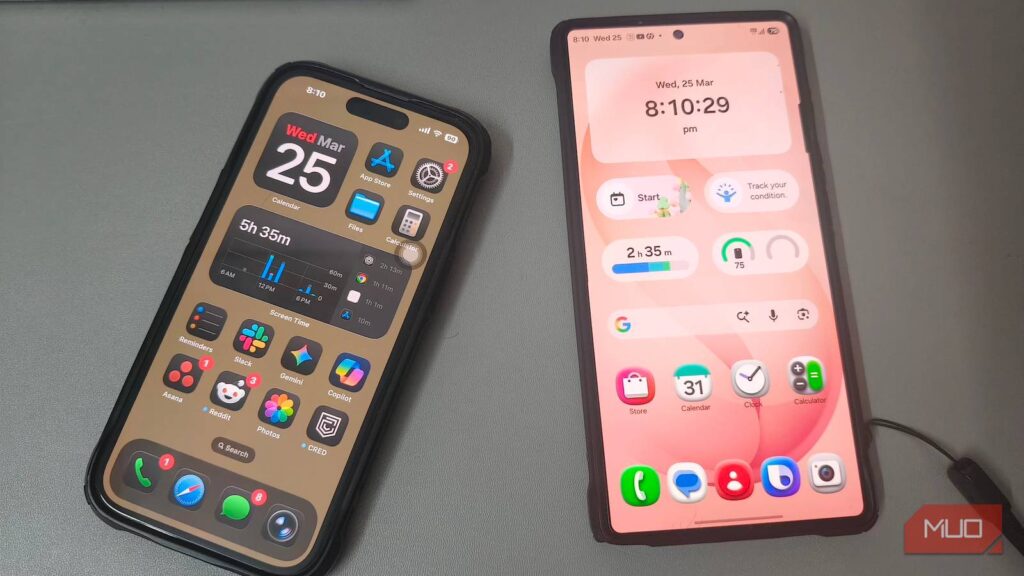
Last month, I switched from Samsung to an iPhone thinking I’d adjust within a week. Instead, I kept reaching for controls that weren’t there. Every time I tried to do something the way I’d been doing it for years, the phone pushed back. The gap wasn’t in specs or app quality. It was in how the phone responded to my hands, or more accurately, how it refused to. After two weeks, my SIM was back in my Galaxy, and the hardware had nothing to do with it.
Samsung lets you rebuild the entire interface
The best-kept secret in Galaxy Store
What brought me back was something I’d set up years ago and hadn’t opened since. Samsung’s Galaxy Store has a free app, Good Lock, that the phone never nudges you toward during setup. I installed it once, and the phone became a different device. Theme Park, for instance, matches your keyboard, quick panel, and volume slider to your wallpaper’s color palette.
Sound Assistant lets you set volume per app and route each one to a different output, so music can play through a Bluetooth speaker while a video stays on the phone speaker. One Hand Operation+ does something similar for navigation, adding invisible gesture handles to both screen edges. Each side supports three swipe directions, and holding the swipe longer triggers a separate action, giving you up to six shortcuts per edge for things like opening recent apps, toggling the flashlight, or jumping straight into split screen. None of this sits on top of the system. Samsung built these modules to reach inside One UI itself, so the changes feel native, not bolted on.
I set most of these up once and forgot they existed. They just became part of how my phone worked. Home Up is the one that stuck the most. It changed how I physically used the home screen and gestures.
One gesture away from everything I needed
No more stretching across the screen
Recently, Samsung rolled out One UI 9, and with it, Home Up introduced Multi finger gestures. It supports two to five fingers across 36 combinations, each mapped to one of 27 system actions. The first one I set was a three-finger swipe down for screenshots. I’d seen this on OnePlus and Realme phones for years and always wished Samsung had it, since the default palm swipe never worked reliably. From there, I added a five-finger pinch for the home screen and a four-finger swipe up for split screen.
I started with those three and left the rest alone. Each gesture has a glow animation and haptic feedback, so I kept both on during the first week to learn which placements actually registered. Gradually, I added more two-finger shortcuts: assigning swipe up for volume, a horizontal swipe for brightness, and a pinch-in to turn off the screen. Apps like Samsung Notes and Gallery needed gestures excluded since pinching already serves a different purpose there.
Once I had everything dialed in, I turned the glow off and kept vibration as confirmation. Within a week, my hands had memorized everything. I didn’t think about which gesture did what. My fingers just moved, and the phone responded. Then I picked up the iPhone, and they had nowhere to go.
Apple’s customization stops where Samsung’s starts
Changing colors is not real customization
To be fair, Apple has loosened its grip over the past few iOS releases. Widgets can go on the home screen now, app icons can be tinted, and the Action Button lets you pick from preset actions like Camera, Flashlight, or Focus. But underneath all of that, the core system stays rigid. You can’t remap gestures, you can’t add multi-finger shortcuts, and every app still locks into a fixed grid. If an interaction feels clunky, you’re stuck with it.
Home Up’s DIY Home screen removes that grid entirely. Icons go wherever you drag them, whether in clusters, along the edges, or spaced out so a wallpaper can breathe. Try that on an iPhone, and the icons shuffle forward to fill every gap. Sometimes they land on a different page entirely, and finding them becomes its own chore.
The iPhone’s dock hasn’t changed in years: four apps, no background, no styling. One UI 9 added Favorites background settings inside Home Up, and the dock became mine to design. I set a background image, adjusted the corner radius and transparency, added blur, and pushed the app count to six. Even the padding on each side has its own slider.
Every detail I changed stayed exactly where I left it. The iPhone never offered that.
A great phone I couldn’t keep
I came back to Samsung knowing exactly what I was giving up, but that doesn’t mean the iPhone got everything wrong. Apple’s ecosystem remains unmatched in how tightly everything connects. Samsung has its own Galaxy Watch, Buds, and SmartThings, but the integration isn’t at the same level.
If you want a smooth experience where everything just works together, the iPhone is an easy recommendation. It just wasn’t enough for me. If you’re on a Galaxy and haven’t tried Good Lock yet, start with Home Up and One Hand Operation+. Two modules, ten minutes, and you’ll wonder why Samsung doesn’t promote them during setup.
- OS
-
Android
- Developer
-
Good Lock Labs
- Price model
-
Free
Good Lock is a powerful customization suite for Samsung Galaxy devices, offering a collection of modules and plugins that let you personalize almost every aspect of your phone. With Good Lock, you can tweak the lock screen, home screen, navigation bar, keyboard, notifications, and more to match your style and workflow.