Three Android settings I avoided for years turned out to be the easiest privacy fixes on my phone
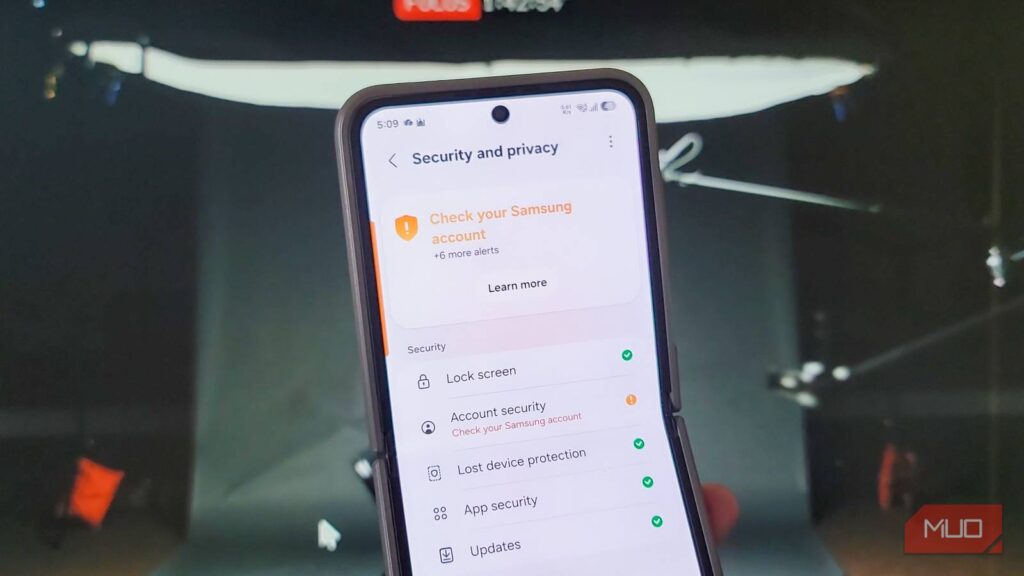
Android now comes with some solid built-in security features. However, not all of them are enabled by default, and some even feel like they are only for advanced users. Over the years, I’ve found and ignored these privacy features because they looked a bit too technical for my taste.
Turns out, they are not as technical as I thought. From blocking Wi-Fi networks from tracking my movement and encrypting my browsing habits to keeping my phone safe from theft, turning on these privacy features took me fewer clicks than changing a theme on my Android phone.
Turn on Google’s Advanced Protection
A single toggle that activates Android’s strongest security settings
Google’s latest update to Advanced Protection has added multiple new anti-theft, privacy, and security features, and not all of them come turned on out of the box. With Android 16, Google bundled several existing security tools into one dashboard, so you no longer need to hunt through five different menus to lock things down.
The steps mentioned in this article are based on a Samsung Galaxy device. Menu names and paths may look slightly different on other Android phones.
To enable it, head to Settings > Google services > All services > Advanced Protection. The first thing you want to turn on is Device protection, which lets you enable intrusion logging. This keeps an encrypted log of some device activities, such as device connections, app installs, and when your screen was unlocked. If you ever suspect your phone was hacked, a security expert can use the log to identify what happened and whether someone else accessed your phone.
The rest of the protections under this menu are equally useful. There’s inactivity reboot, where the phone restarts automatically if it stays locked for three days. This puts the phone back into an encrypted state, so a thief who keeps your phone powered off and tries to extract data later will need a PIN or biometric to get in. It also blocks 2G connections (which are vulnerable to fake base station attacks), blocks installation of apps from unknown sources, scans for spam messages and suspicious links in Google Messages, and keeps Google Play Protect always running.
On top of that, if you go into Settings > Privacy & Security, you can also enable Find My Device and activate theft protection, where the device automatically locks itself when it detects a snatching attempt and locks the phone if it goes offline.
Setting up private DNS
Encrypts your web lookups so nobody on the network can see them

By default, when you search for a URL (domain), the lookup is sent unencrypted over UDP port 53 to your ISP’s DNS server. While it works, it’s not safe, because anyone on the path can see your requests, including your ISP or the cafe owner if you’re using public Wi-Fi. Your browsing habits are essentially up for grabs.
More importantly, since the request is not authenticated, anyone who can see it can also change it. An attacker on public Wi-Fi, for instance, can send back a fake answer and redirect you to a phishing site instead of the real one. This is commonly known as spoofing and phishing attacks.
A private DNS sends your lookups through an encrypted channel to a resolver of your choice. While someone can still see that encrypted traffic is going to the resolver, they can’t see what URL you requested. And TLS makes sure that you are talking to the correct resolver, which prevents spoofing attempts.
To add a private DNS on your Android phone, head to Settings > Connections > More connection settings > Private DNS. Then add your preferred DNS provider’s hostname. Some well-known DNS providers include:
Apart from privacy and security, the right provider can also block ads and trackers system-wide. Some, like Cloudflare’s family.cloudflare-dns.com, go a step further and block malware and adult content too. I went with AdGuard DNS because it handles both ad blocking and tracker blocking without needing a separate app, but do your own testing and find the provider that works best with your ISP.
MAC address randomization
Stops Wi-Fi networks from tracking your phone across locations

The Wi-Fi chip on your phone has a unique MAC address, a 12-character hardware ID. Networks use it at the local level to identify devices, allocate IP addresses, and make sure data is sent to the right device.
This can become a problem if you connect to a lot of public Wi-Fi networks. Every network you try to join logs your MAC address, which leaves an identifiable trace that can be linked back to you. If you used your email or phone number to log into a venue’s network, that trace can be tied directly to your identity. Across enough locations, someone could build a rough profile of where you go and how often.
With MAC address randomization, your phone shows a fake MAC address instead of the real one, which stops this kind of profiling. The good news is that most newer Android phones ship with MAC address randomization enabled by default. But if yours doesn’t, or if you want to double-check, you can turn it on manually.
Go to Settings > Network & connection > Wi-Fi, then tap the Gear icon beside a Wi-Fi network. Tap to view more details and check if MAC Address type is set to Randomized MAC. If it’s set to Phone MAC, tap the option and choose Randomized MAC instead. You’ll want to do this for each saved network.
Privacy maxing your Android phone
Smartphones have become so central to how we live that you probably have yours within arm’s reach right now, checking it every few minutes for private messages, banking notifications, and work emails. That also makes it a high-value target, which is exactly why phone makers keep adding more safety features with each update.
Some of these security features are turned off by default because they can lock you out of your phone if you don’t remember the account or PIN you used. Fortunately, each one takes less than a minute to enable, and together they cover three of the biggest privacy gaps on any Android phone.