My old Fire TV Stick was throttling itself until I changed these 5 settings
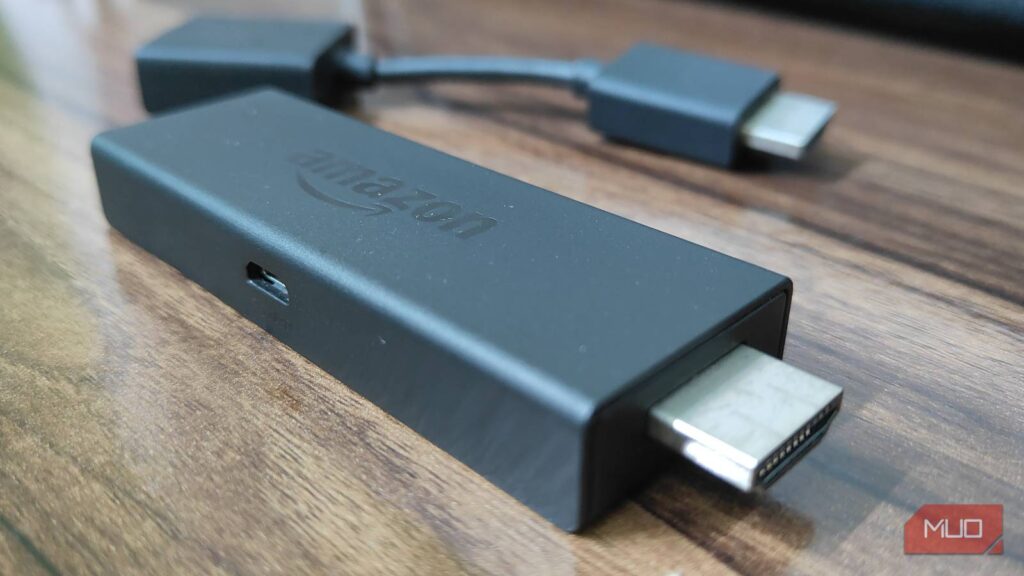
Nothing is more annoying than navigating a sluggish media center UI because your streaming device has started thermal throttling. Much like any other “smart” device, streaming modules such as the Fire TV Stick are prone to overheating, despite their limited computational power. This is even more common among older units, which start thermal throttling within a couple of hours (if not earlier) of use.
This has been the case with my old third-gen Fire TV Stick, which overheated within a few hours of regular streaming. Thankfully, changing a handful of settings on the device itself saved me the headache of buying a new streaming device for my media center.
Disable autoplay settings
Turning off autoplay had the biggest impact on performance and thermals
Believe it or not, disabling autoplay alone can solve half of the issues you’re facing with your old Fire TV Stick. For some reason, autoplay for videos and audio is enabled by default on all Fire TV Sticks, whether it’s the new Vega OS device or the older, Android-based Fire OS sticks. It lets you play video content like trailers and previews simply by hovering over an app or previously viewed content on the home page.
However, because the Fire TV Stick has limited CPU bandwidth, autoplay also causes noticeable lag and thermal throttling. Thankfully, you can easily disable autoplay on the Fire TV Stick.
To do so:
- From the home page on Fire TV, navigate to Settings > Preferences > Featured Content.
-
Under Featured Content, you will find two options:
- Allow Video Autoplay
- Allow Audio Autoplay
-
Ideally, you just want to disable Video Autoplay. This completely removes those preview clips that play on the home screen or in-app (Netflix, Prime Video, etc.).
- However, if you’re experiencing too much lag or heating issues with your old Fire TV Stick, I recommend disabling Audio Autoplay as well.

- Brand
-
Amazon
- Operating System
-
Fire OS
- Downloadable Apps
-
Yes
- Resolution
-
4K
Disabling autoplay simply removes the preview feature from the home screen. You can still watch the trailers or previews by clicking on the app or movie/TV show tile on the home screen. It certainly adds an extra button press to your routine, but it’s totally worth it to keep your streaming stick healthy in the long run.
And it also saves you from the hassle of replacing your old Fire TV Stick, at least for a few more years.
Delete redundant apps and cache data
Older apps and their cache can clog storage

Similar to your phone or Android tablet, the Fire OS also accumulates app cache data that, over time, can easily clog up your Fire TV Stick’s limited storage. And with the older streaming sticks, you only get 8GB of internal storage, with the usable space being somewhere within the ballpark of 5 to 5.5GB. Less storage means that the device has very little headroom to switch between apps quickly. And this ultimately results in a sluggish media navigation experience.
Additionally, storage issues are also one of the major contributors to thermal throttling, especially on older streaming sticks. Now, to prevent that, you can easily clear out cached data on your Fire TV Stick.
To clear cache data on the Fire TV Stick:
- Simply navigate to Settings > Applications > Manage Installed Applications.
- Under Manage Installed Applications, you will find a list of apps that you have installed on your Fire TV Stick, including the system apps as well.
- Now, just hover over the apps list and press the media playback button to delete the cache data of the selected application.
Now, if you also have redundant apps on your Fire TV Stick, I highly recommend deleting them as well. That said, do make sure to check if you have an active subscription to said app before deleting it. Deleting the cache data doesn’t necessarily sign you out of your apps, unless you completely delete the application from the Fire TV Stick.
Use an HDMI extension
A few inches of distance from the TV can bring the thermals down significantly

Much like the Fire TV Stick, your smart TV can also overheat, especially if it’s a budget 4K display used to output 4K videos. Most TVs, especially budget models, don’t have adequate cooling and instead rely on room-temperature controllers to keep their thermal limits in check. As a result, the area around the TV’s HDMI and audio ports can get incredibly hot during operation. In rare instances, this heat can overheat the Fire TV.
To be on the safe side, I highly recommend using an HDMI extension cable. While this isn’t a “setting” per se, it’s still something that helped keep my old Fire TV Stick cooler.
The older Fire TV Sticks usually come bundled with a short HDMI extension. If you don’t have one, you can get one for less than $3. The cable extension doesn’t affect the Fire TV Stick’s streaming quality and gives you ample room to place the device a bit farther away from the TV. This not only keeps your streaming stick cooler, but also gives you ample room for proper cable management.
Use 2.4GHz Wi-Fi over 5GHz
But with one major caveat

Ideally, you always want to pick the fastest wireless connection for your 4K streaming setup. However, streaming at 4K with the Fire TV Stick connected to the fastest home Wi-Fi can also cause overheating. Now, if your Fire TV Stick is connected to a 1080p display, which isn’t particularly uncommon, even in 2026, you might wanna bump the device’s internet speeds down a notch to keep it a bit cooler. Here, using the 2.4GHz band makes way more sense than the 5GHz.
For 1080p or even 1440p streaming, 2.4GHz is more than sufficient. Furthermore, this also clears the 5GHz band for devices that benefit more from that faster speed.
However, there’s one major caveat: 4K streaming. If you have a 4K streaming setup and tend to watch most of your entertainment at that resolution, it’s best to keep the Fire TV Stick connected to the 5GHz band. Additionally, if you have too many old devices already connected to the 2.4GHz band, it’s just best to use the 5GHz Wi-Fi for your Fire TV.
Keep your Fire TV Stick up-to-date
Background updates are the biggest cause of thermal throttling

One thing that I’ve learned from almost half a decade of using my Fire TV Stick is that you should always keep the device up-to-date. Half the time, the lag spikes or stutters I faced while switching between apps or simply watching a documentary on my TV were due to my Fire TV Stick deciding to download a firmware update in the background. Due to the limited memory pool of the Fire TV, queued-up updates can also end up overheating the device.
To avoid this, I check for updates weekly. That way, if there are any pending updates, I can get them done outside of my “streaming/TV binging” hours.
Furthermore, this also makes sure my device is up-to-date and never thermal throttles due to a pending system update.