Your TV’s HDMI-CEC setting can control more than you think
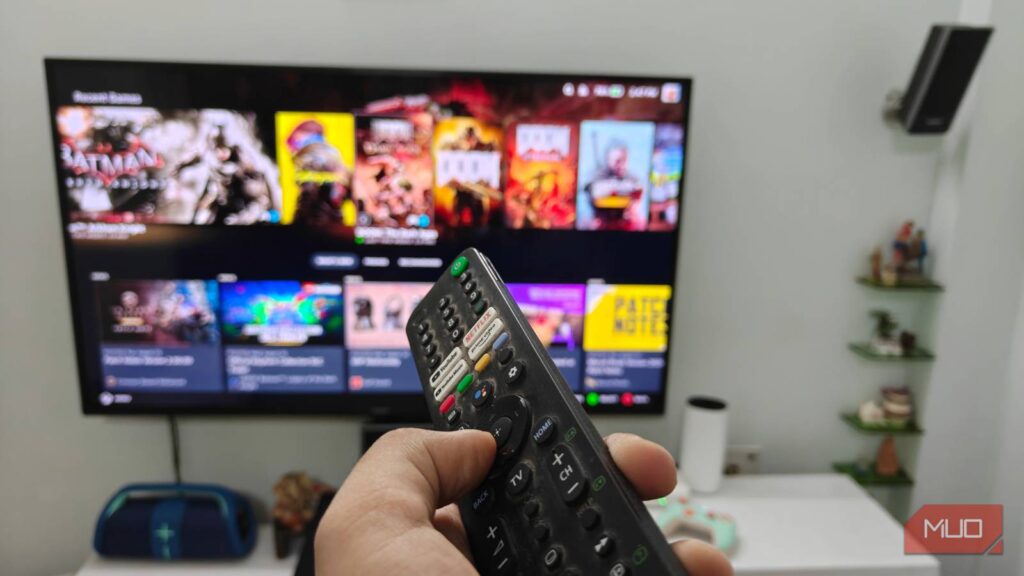
Most folks discover HDMI-CEC by accident. You press play on a streaming stick or connect a PlayStation, the TV wakes up and switches inputs on its own, and you assume it was a lucky quirk. Well, it wasn’t. There’s a small control feature built into your HDMI cables that’s doing the work, and most TVs hide this feature under a name you’d never search for.
Once you know what it can do, you can retire a drawer full of remotes.
What HDMI-CEC actually is
Your TV remote isn’t the only thing controlling your TV

HDMI-CEC stands for Consumer Electronics Control. It’s part of the HDMI standard that lets your connected devices talk to each other over the same wire that carries picture and sound. You don’t need extra wiring, Wi-Fi, or an app. Your TV, soundbar, and streaming box can simply talk to each other without any complicated setup. For instance, when you turn on a compatible streaming box or console, it tells the TV to wake up and switch to the appropriate HDMI input. Similarly, when you turn off the TV, it can tell everything else to follow.
It’s worth knowing that HDMI-CEC doesn’t carry your video or audio content itself. HDMI handles those signals, whereas CEC provides a way for your compatible devices to communicate with each other. Also, you don’t need to invest in a special HDMI cable just to use standard CEC functionality. Your devices must support this feature.
So you see, CEC is a specification and TV manufacturers implement it in slightly different ways, which is why it feels flawless on one setup and kinda broken on another.
How to find HDMI-CEC on your TV
Your TV brand may hide HDMI-CEC under a different name
You’ll rarely see the exact word “HDMI-CEC” in the menu. Each brand has its own label for HDMI-CEC, which is why many users search their settings, find nothing, and assume their TV doesn’t support it. To avoid any confusion, here’s what to look for:
|
Samsung |
Anynet+ |
|
LG |
SIMPLINK |
|
Sony |
BRAVIA Sync, BRAVIA Link, Control for HDMI |
|
Philips |
EasyLink |
|
Panasonic |
VIERA Link, HDAVI Control, EZ Sync |
|
Roku |
Control other devices |
|
Vizio |
CEC or HDMI-CEC |
|
Sharp |
AQUOS Link |
On most TVs, you’ll usually find this setting under Settings, then a section such as General, External Devices, Inputs, or HDMI Settings. The exact path depends on your TV model and software version. In case you can’t find the setting, you can check your TV’s manual or search the manufacturer’s support website for its CEC feature name.
What can HDMI-CEC control?
It can do much more than you’d expect

The most obvious benefit of HDMI-CEC is reducing the number of remotes you need to control your setup. But that’s just the beginning.
- One-touch play: When you start a streaming box, console, or Blu-ray player, the TV powers on and jumps to the right input. This means you don’t need to dig into the input menu and select the device manually. Basically, your entertainment devices will work together, and you don’t have to control each one separately.
- Turn off connected devices at once: When you switch off the TV, your connected devices go to standby automatically, so nothing sits idle all night.
- One remote for everything: Your TV remote’s select and playback buttons (and other options, too) can navigate the connected device’s menu. This means your device’s own remote can stay in the drawer.
- Soundbar and receiver volume: When you connect a soundbar to an ARC or eARC port, the TV remote’s volume and mute buttons control it directly, while the TV’s own speakers switch off.
- Automatic audio routing: If you’re using a soundbar, your TV’s sound moves to it. When you turn the soundbar off, the sound returns to the TV speakers.
- Device recognition: Many TVs can identify what’s plugged in and label the input to match, so your “HDMI 2” can become “Blu-ray Player.”
Don’t confuse HDMI-CEC with HDMI ARC/eARC; they are two different things. ARC and eARC send sound between compatible devices, like your TV and soundbar. Whereas CEC handles the control commands that make your volume buttons work.
How to set up HDMI-CEC
Change how your living room feels

You don’t have to install anything or get into any technical details to use HDMI-CEC. The process is straightforward and should take about five minutes.
- Connect your devices properly using good quality cables.
- On your TV, open the Settings menu and enable CEC.
- You have to enable HDMI-CEC on both ends. If you own an Apple TV, look for Control TVs and Receivers under Remotes and Devices. PlayStation 5 users have to turn on HDMI Device Link. Most soundbars usually have it on by default, but it’s worth a look.
- The next thing you need to do is choose your audio output, your soundbar, for example.
- Test your setup. Turn on the connected device and check whether your TV selects the correct input. If you’ve connected a compatible soundbar, try adjusting the volume. Finally, turn off your TV and observe how your other devices respond.
If CEC isn’t working for you, the next section probably has your answer.
When HDMI-CEC goes wrong
Sometimes, things might get annoying

HDMI-CEC is designed to make your entertainment setup easier to manage, but sometimes, your connected devices might not cooperate, which turns into frustration.
- If you notice your TV turns on unexpectedly, you can unplug devices one by one to find the offender and turn off CEC on that device only.
- If your TV is switching inputs, you must check for an automatic input-switching option on the TV or the connected device.
- If your TV remote cannot control the connected device, make sure you’ve enabled CEC on both devices. You can also try another HDMI port or restart your devices.
- When your TV and connected devices turn off unexpectedly: Quickly check the settings for automatic power-off and TV auto power-on, and adjust the behavior.
If none of that works, you can also reconnect your devices, toggle the TV’s CEC setting, or try a different HDMI port/cable.
When you should turn HDMI-CEC off
HDMI-CEC can turn into trouble if your devices keep switching inputs or interfere with each other. Rather than disabling it everywhere, I would recommend that you switch it off on just the misbehaving device and enjoy the benefits on the rest of your setup. Turn it off on the TV itself only as a last resort.