Your Excel spreadsheet doesn’t need more colors, it needs a better font
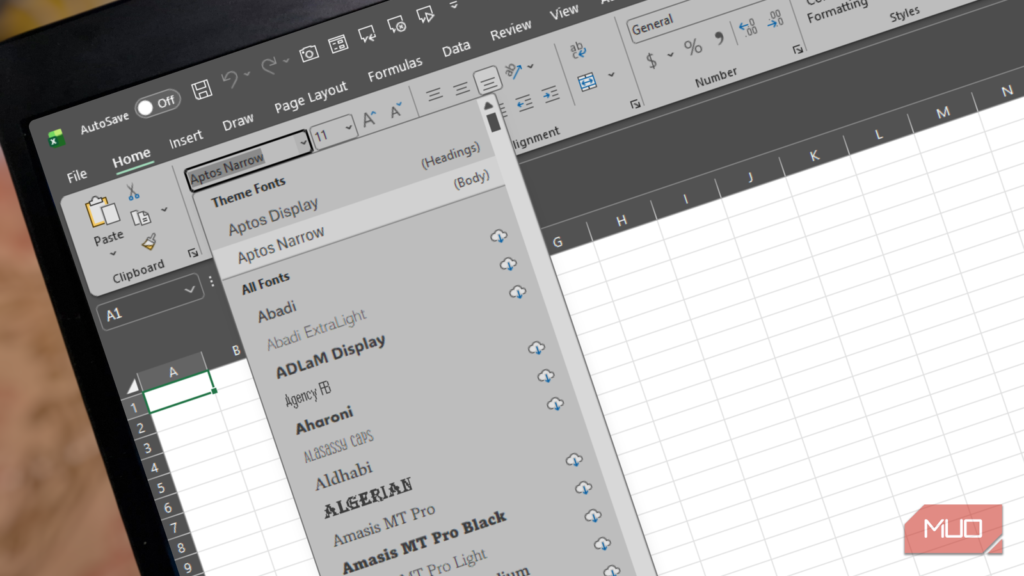
When people think about formatting a spreadsheet, they usually think of giving their Excel sheets a visual makeover. That’s because spreadsheet design has somehow become synonymous with adding more conditional formatting. Yet, before you notice the color scales on a spreadsheet, your eyes have already processed the typography.
The font you choose affects how quickly you scan information, distinguish characters, and navigate your workbook, so it deserves more thought than you might think.
The Excel font you choose matters
Aptos isn’t the answer to everything
A hard-to-read font can make an otherwise excellent financial model look less polished. But that doesn’t mean you need an unusual typeface to stand out. In fact, the opposite is usually true, as decorative fonts tend to create more problems than they solve. Sticking to one appropriate typeface across worksheets, financial statements, schedules, and footnotes helps you maintain a consistent, professional appearance.
Your font choice becomes even more important when you consider how much information Excel worksheets often contain. A wide font can push columns beyond the visible screen, forcing you to scroll horizontally just to compare figures, while a font that’s too small can strain your eyes and make similar-looking numbers harder to distinguish. To avoid these extremes, many professionals rely on Arial Narrow, which offers a useful balance between readability and space efficiency. At 10 or 11 points, it can help you preserve valuable screen space without making the worksheet unnecessarily difficult to read. Since it belongs to the widely used Arial family, it’s also a familiar choice for most people.
However, Arial Narrow isn’t the answer to every spreadsheet problem. Different workbooks have different requirements, and some fonts suit particular readability challenges better than others.
|
Consolas |
This monospaced font gives every character the same horizontal width, making it useful for reconciliation work, technical identifiers, and data containing lots of numbers, negative signs, or decimals. Its slashed zero also helps you distinguish the number |
|---|---|
|
Calibri and Aptos |
These familiar sans-serif fonts work well for everyday business reporting, dashboards, and general-purpose workbooks. Both offer a clean appearance without the compressed look of a narrow typeface. |
|
Verdana and Tahoma |
These fonts are designed for screen readability. Verdana’s generous spacing and distinctive characters can help you distinguish similar-looking letters, while Tahoma offers a more compact alternative. |
|
Segoe UI |
This font provides a clean, modern appearance that works well for executive dashboards and presentation-oriented worksheets where you need to balance limited space with visual clarity. |
|
Times New Roman and Cambria |
These traditional serif fonts may suit formal reports and printed documents, but check how they look at smaller sizes before committing to either. |
Excel’s default font isn’t necessarily a bad choice, as Aptos and Calibri work well in many situations. However, rather than automatically accepting the default, why not choose a font that better suits your workbook’s purpose, information density, and intended audience?
Finding your best Excel font
A little testing goes a long way

As a general rule of thumb, you should determine your workbook’s purpose before choosing a font. For instance, you might choose Times New Roman if you intend to convert your Excel spreadsheet to PDF, or Arial Narrow if you’re working with a wide budget model containing 24 monthly columns. Most typefaces have their strengths, and a quick Google search can help you identify the one that best suits your workbook’s purpose.
I often end up with more than one option, so I test different fonts before choosing. One way I do this is by comparing three characters in a test cell: the numeral one 1, the lowercase letter l, and the uppercase letter I. These characters look similar in some fonts, which can become a headache when you’re working with product codes, account numbers, or database identifiers. I also compare the numeral zero 0 with the uppercase letter O to make sure they’re easy to distinguish.
If your workbook needs a condensed font, run a few additional tests to see whether it’s the right fit. Start by duplicating your worksheet, leaving one copy in the default font and changing the other to the condensed font you want to try. You can also experiment with different font sizes to see how they affect readability and screen space. Make sure you keep the zoom level and window size identical in both sheets so that you can compare them fairly. Then, count how many columns fit on screen in each version and check whether your headers remain readable and your numbers display clearly. Pay attention to truncated headings and cells displaying ###, which can indicate that a column is too narrow to display a formatted value.
Because your workbook will rarely stay on one computer, also check whether your chosen font displays consistently across different operating systems and Office versions. Excel may substitute another typeface when you open a workbook on a computer that doesn’t have your chosen font installed. This can change character widths, affect wrapped text, and disrupt print layouts. To avoid these problems, try to choose fonts that are commonly available across your team’s systems.
If you ever need to change the font in an existing workbook, review the print preview before distributing the file. This gives you an opportunity to catch changes in column widths, awkward page breaks, and other formatting problems before you share your workbook.
Give your spreadsheet a better fit
When you open a spreadsheet that’s exhausting to read, take a closer look at the characters and column widths first. You might discover that the problem is your choice of typeface.
A deliberate font choice, whether condensed for dense worksheets, monospaced for character clarity, or a clean sans-serif for screen readability, can make your data easier to scan, help more columns fit on screen, and reduce character ambiguity. Once you’ve got the typography right, you can turn your attention to conditional formatting and use it to highlight the information that matters most.