Why 64-bit Windows needs two Program Files folders
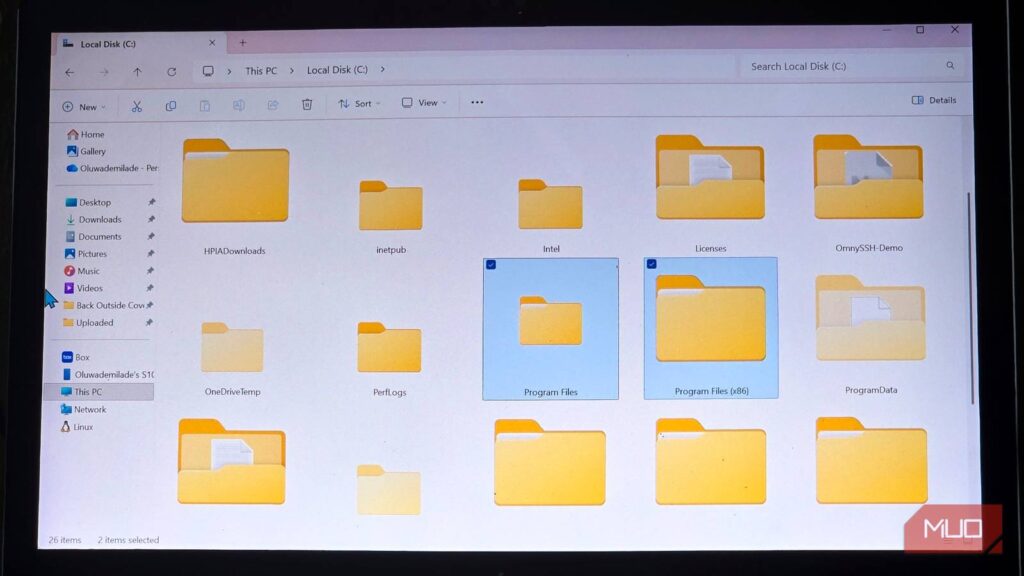
If you open up the main drive on just about any Windows 11 PC, you’ll see two folders sitting next to each other with oddly similar names: Program Files and Program Files (x86). That extra “(x86)” tag isn’t exactly self-explanatory.
The quick explanation is that one folder holds 64-bit apps and the other holds 32-bit apps. But that still doesn’t answer the real question. Since Windows already knows whether an app is 32-bit or 64-bit anyway, why do they need separate homes in the first place? It all comes down to one of Microsoft’s biggest, long-standing goals: making sure your old software keeps working smoothly, even as the system underneath it changes.
64-bit Windows inherited a mountain of 32-bit software
Microsoft couldn’t empty the house before renovating it
In Windows terms, x86 means the 32-bit, Intel-compatible architecture, while x64 covers the 64-bit family used by both AMD and Intel chips. Modern Windows has moved firmly to the 64-bit side. In fact, Windows 11 doesn’t have a 32-bit edition at all.
The software running on it didn’t make that jump overnight. By the time 64-bit Windows was practical for everyday PCs, developers had spent years shipping 32-bit apps. Making every program wait for a full 64-bit rewrite would have turned a Windows upgrade into a software wipeout.
Instead, Windows built a compatibility subsystem called WOW64 (short for “Windows 32-bit on Windows 64-bit”). On x64 systems, WOW64 provides the compatibility layer that lets 32-bit software keep running without being rebuilt from scratch. It fits right in with the same backward-compatibility habit behind many of the ancient features Windows 11 still supports.
However, keeping old code alive brought up a messy problem. A lot of software comes in both 32-bit and 64-bit versions. If you dump both versions into the exact same folder, files with identical names (like app launchers, background plugins, and shared components) will crash into each other and break. The Common Files folder gets especially tricky because different apps need different, specific versions of the same shared file. Giving them separate folders completely prevents these file clashes.
So each architecture gets its own address. Native 64-bit software normally lands in C:Program Files, while 32-bit x86 software goes into C:Program Files (x86).
The folder name doesn’t decide what an app is
Windows reads the binary before it reads the sign on the door

Moving an EXE from one Program Files folder to the other won’t magically turn it from 32-bit into 64-bit. The executable itself contains the architecture. Windows programs use the Portable Executable file format, which carries the information the loader needs to understand what kind of binary it’s dealing with.
That architecture also limits what can live inside the same process. A 32-bit process can’t load a 64-bit DLL, and a 64-bit process can’t load a 32-bit DLL. Microsoft’s 64-bit programming documentation spells out that restriction, which helps explain why Windows keeps architecture-specific application files and libraries from getting mixed together in the first place.
WOW64 handles much of the routing behind the scenes, and Windows environment variables clearly show how it works.
From a 64-bit process, %ProgramFiles% points to the native Program Files directory. If you run the same variable from a 32-bit process under WOW64, it points to Program Files (x86). Microsoft also provides %ProgramW6432%, which lets a 32-bit process refer to the native 64-bit Program Files directory. Windows sets those values according to the architecture of the process asking for them.

That means a well-behaved installer doesn’t need to hard-code C:Program Files (x86) and cross its fingers. It can ask Windows for the right known folder and let the operating system handle the architecture split.
You see the same compatibility sleight of hand among Windows system files. On 64-bit Windows, C:WindowsSystem32 contains 64-bit system binaries. When many 32-bit applications try to access System32, the WOW64 file-system redirector sends those requests to SysWOW64 instead, where the matching 32-bit binaries live.

The folder names are backward-looking, especially when System32 holds 64-bit files, and SysWOW64 holds 32-bit ones. By now, though, decades of software expect those paths to work exactly as they do, so Windows keeps the weird names and handles the translation behind the scenes.
Program Files is a convention with a lot of plumbing behind it
Dropping an EXE in the other folder doesn’t summon the Windows police

A standalone program doesn’t actually have to live in either Program Files folder. Portable apps—the ones you can run without installing them—are a perfect example. You can keep them in Downloads, on another drive, or on a USB stick without putting them in either Program Files folder.
Installed software, however, is a completely different story. If you manually drag an installed app from Program Files (x86) to the main Program Files folder, you’ll break something. This leaves behind a trail of broken desktop shortcuts, uninstaller data, background updater tools, Registry settings, and saved paths that still point to the old location. The main app might open, making it look like your trick worked, until a specific feature crashes because it can’t find a file it needs.
If an installer picked one of the two folders, the safest move is to leave the app there. The (x86) label isn’t a speed warning, and shuffling the program into the other folder won’t turn it into a 64-bit build. That only happens when the developer actually ships a version compiled for that architecture.
Two folders are a small Windows fossil
There’s one modern twist the original folder split never had to account for. Windows 11 on Arm can run both x86 and x64 applications through emulation, even though the PC runs on an Arm64 processor.
The old directory setup came along for the ride. On an Arm PC, Program Files (x86) still holds x86 apps, while Program Files can hold x64, Arm64, and Arm64X software.
That makes the (x86) label a little more interesting now. At this point, it tells you less about the PC’s processor and more about which branch of Windows software the app belongs to. The hardware can change completely, and Windows still keeps that old address around because decades of software expect it to be there.