I don’t want AI on my phone, but these 4 Android features I can’t give up
Let me get this out of the way — I’m not a fan of AI being forced into just about every corner of the phone. But that’s the reality, and honestly, it’s not all bad.
AI genuinely makes life easier in some cases, and there are a few Android features that have become so routine, I barely register them as AI anymore. They’ve just become the way I do things now.
Circle to Search
It’s become a muscle memory at this point
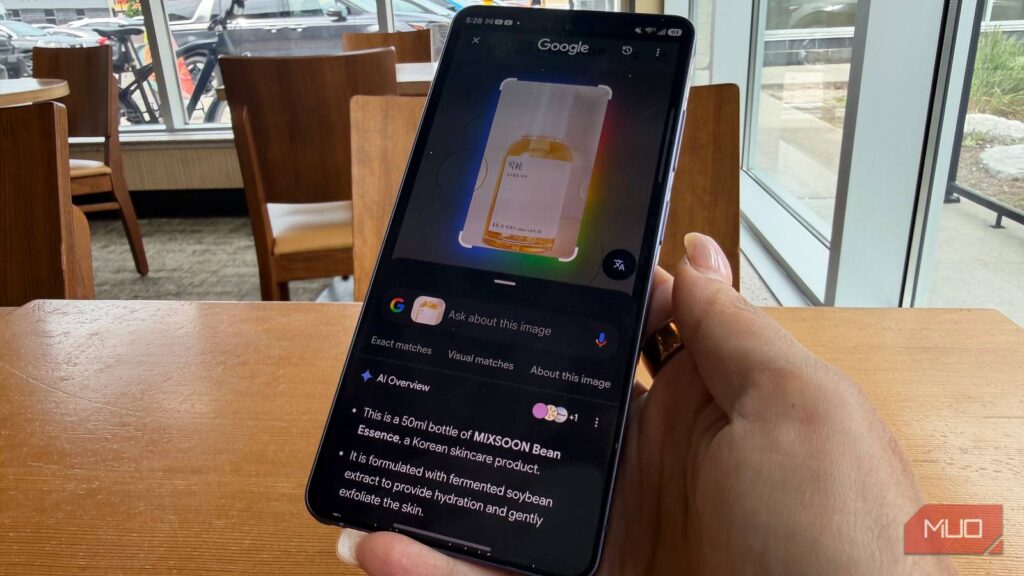
If there’s one AI feature I can’t live without anymore, it’s this one. Circle to search is something I use almost every day, and it helps me with so many things. I can circle a product in a photo to see where I can buy it from, or circle a face to identify the celebrity. Heck, I can even bring it up while reading an article like this one and ask it to summarize the content.
My favorite use case, though, is working with text. Circle to search lets me copy text from any screen, translate it, and even look up definitions.
The best part is how quick and fun it is. I can simply long press on the navigation bar or the home button and circle on the thing I want to search. It’s so much faster than typing a query or doing an image search manually.
Scam detection and call screen
Dodging unwanted calls has never been this easy
One of the best things Google is using AI for is protecting you from scam messages and calls. Google Messages already does a great job of filtering spam messages automatically, but it doesn’t stop there. When you receive messages from those who are not in your contacts list, it uses AI to analyze them. And if it detects any scam pattern, you get a warning.
This works the same way for calls — your phone automatically detects what the other person is saying and uses AI to spot anything suspicious. All the processing happens on-device, so you don’t have to worry about privacy.
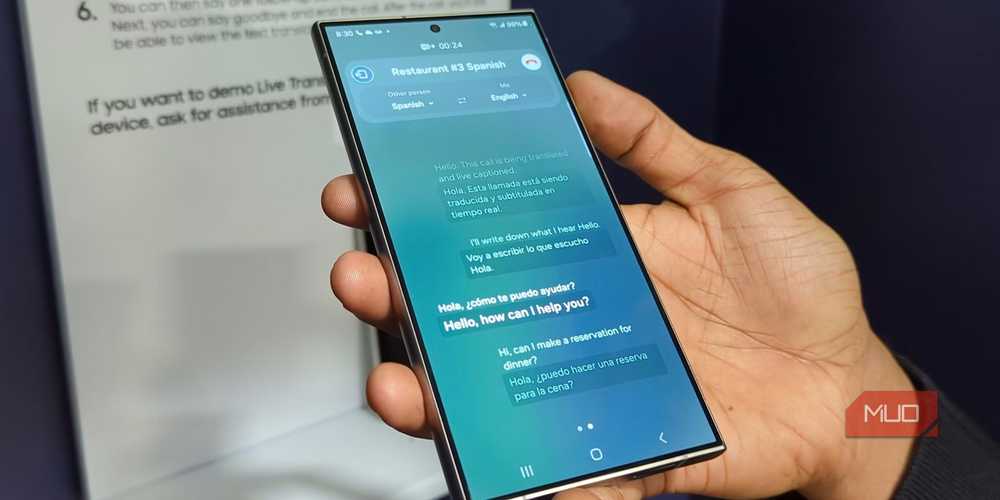
There’s also call screening or call assist. This turns your phone into an assistant where it asks the other person why they’re calling, and their responses show up as text in real time. You can then decide if it’s worth picking up or not. This is something that helps a lot with those marketing calls. And, of course, if you’ve got a Pixel, you also get Hold for Me, Call Notes, Live Translate, and Direct My Call.
Magic Eraser or Photo Assist
Make any photo look great

Photo editing is something all of us do, and features like Magic Eraser and Photo Assist make it much easier. You can use it to erase unwanted objects from a photo, and it does an exceptional job of recreating missing parts. I use it all the time to remove reflections and shadows from photos I take for my articles.
You’re not limited to deleting things, of course. Magic Eraser also lets you reposition people and objects in a photo. So, if someone ends up at the edge of a photo, you can actually move them toward the center instead of cropping everyone else out. All of this happens in seconds and looks easy, but it’s something that used to require Photoshop skills back in the day.
Gemini
An assistant that actually assists
Gemini is no longer just a regular chatbot for writing emails or asking questions. And no, I’m not talking about its ability to generate images and videos either, although those features are impressive too.
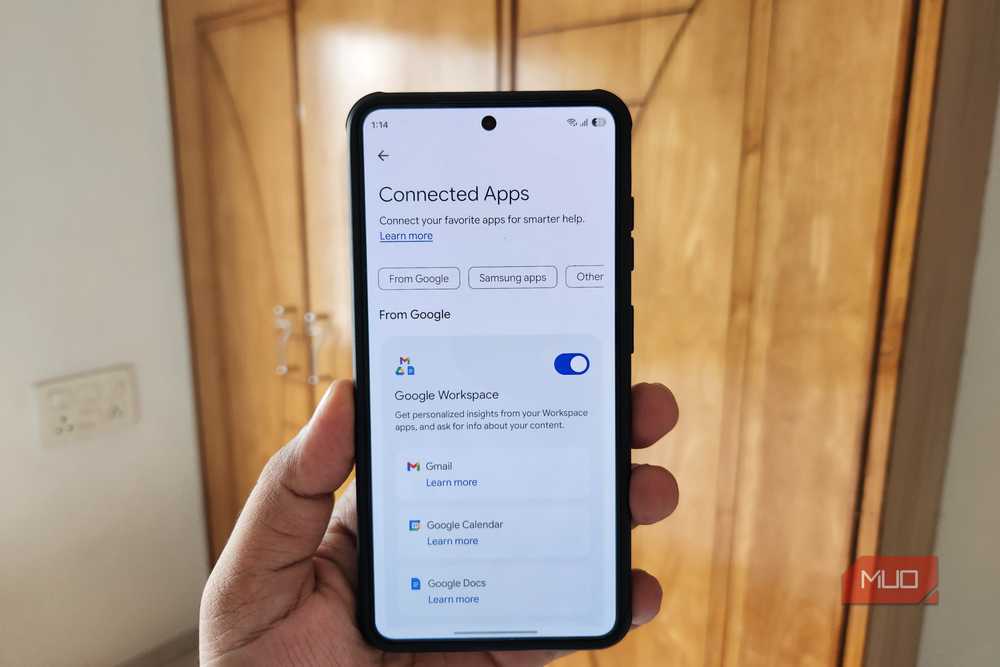
My favorite feature is its ability to connect Gemini with apps. Gemini can connect to Messages, Calendar, Keep, Gmail, Drive, Docs, Photos, and YouTube. It can now pull my personal information from all these apps and answer questions accordingly. I can ask it to dig through my Gmail and find details about my car’s insurance. I can even ask when my next dental appointment is, and it checks the Calendar directly instead of making me open the app myself.
Gemini can also talk to third-party apps in the same way. These include WhatsApp, Canva, Spotify, Samsung Notes, Samsung Calendar, Adobe, Dropbox, and a few others.
Pixel Screenshots
Never lose a screenshot again
This one’s Pixel-only, but it’s worth talking about because it’s so good.
If you’re someone who screenshots everything — addresses, receipts, tracking numbers, random bits of info you’ll need later — you know the problem. That stuff ends up buried in a gallery of a thousand screenshots with no easy way to find anything again. Pixel Screenshots fixes that by actually reading every screenshot you take, understanding what’s in it, and sorting it automatically.
Later, when you need to find the screenshot or some specific information inside it, you can simply ask in natural language, like “what was the price of RAM on that Amazon listing?” and the app does the rest. There’s no need to remember when you took that screenshot or scroll through hundreds of images manually, which is a huge time saver.