I gave my Galaxy a speed boost by removing these preinstalled Galaxy apps
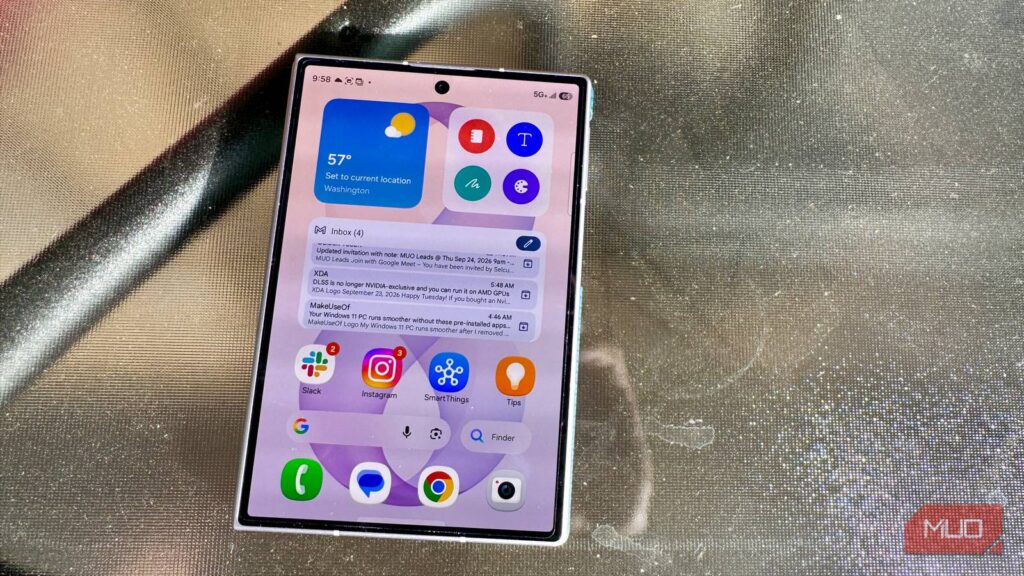
As good as Samsung smartphones are, the company still installs some unnecessary bloatware on all of its Galaxy smartphones and tablets. Don’t get me wrong, Samsung offers some excellent preinstalled apps, but not every one of them is useful.
Samsung doesn’t make it easy to remove these apps either, so you’d have to rely on ADB to remove the bloatware. I went ahead and cleaned up everything from Samsung Members to Galaxy Avatar, and my phone feels lighter after the cleanup.
Bixby
Samsung’s voice assistant has become more trouble than it’s worth

Bixby wasn’t bad when I first started using it on my Z Flip 6. It handled basic tasks well enough, and having a voice assistant baked into the system was convenient. But over the last two updates, One UI 8.5 and One UI 9, Bixby has become slow and unreliable.
It takes its own sweet time to wake up, and when it does, it has a hard time following through on commands. Even something as basic as making a phone call now feels like a chore because it fails to correctly identify the contact. All that AI integration has made what was once a reliable voice assistant noticeably worse.
I’ve since switched to Gemini for everything Bixby used to handle. Gemini responds faster, understands context better, and doesn’t stumble over simple requests. If you’re still holding onto Bixby out of habit, I’d recommend giving Gemini a shot. You can uninstall Bixby using ADB with the following command: adb shell pm uninstall -k --user 0 com.samsung.android.bixby.agent.
Samsung Members
A support app that mostly just sends promotional notifications
Another Samsung app I had barely used in my almost 15 years of using Samsung phones is the Members app. It’s Samsung’s support and community hub for Galaxy phones and tablets, and on paper, it sounds useful.
Some features of the app include a built-in diagnostic tool that lets you run hardware tests on the battery, screen, sensors, speakers, and more. You can also use it to contact Samsung support, book repairs, look up service centers, and browse community forums. It’s also the only way to join Samsung’s Beta programs.
But if you have never used the app before, you likely won’t find much use for it in the future. And if you keep it installed, it sends promotional notifications, runs in the background using battery and data, and is borderline redundant for most people. You can disable the app from Settings > Apps > Samsung Members > Disable. Or remove it completely via ADB using: adb shell pm uninstall -k --user 0 com.samsung.android.voc.
Samsung News
A news aggregator you don’t need when Google Discover exists

Samsung News is Samsung’s built-in news aggregator, and it works much like Google Discover. Since I already use Google’s service along with Feedly, Samsung News felt unnecessary from the start.
Even the few times I tried to give it a shot, it was a disappointing experience. The news feed was full of irrelevant content, and personalizing my interests didn’t help either. When notifications are enabled, it clutters the notification panel with pings about stories I don’t care about.
My primary reason for removing it, though, is that it’s tied to the Home screen panel. Swipe right by accident and you end up on a news feed that’s barely interesting and outright annoying. Like most Samsung preinstalled apps, you can only disable it from Settings > Apps > Samsung News. If you’d rather remove it completely, ADB is your friend.
Use adb shell pm list packages | findstr -i spage to find the exact package name. It should look something like com.samsung.android.app.spage. Then run adb shell pm uninstall -k --user 0 com.samsung.android.app.spage to remove it. Keep in mind that a factory reset will bring many of these apps back, including Samsung News.
Galaxy Avatar
A novelty feature from the AR Emoji days that’s just dead weight
Galaxy Avatar, previously known as AR Emoji, lets you create a digital version of yourself. It was a trend a few years ago, but it quickly died down.
The core idea is to let you create cartoons of yourself using the camera, where you can customize the face, makeup, clothes, and accessories. You can also create stickers, use the Avatar Camera to overlay your avatar’s face on yours and make it mimic your body movements, and save it as a contact profile picture.
While it may not be as intrusive as other Samsung apps, it’s dead weight if you don’t use it. Removing Galaxy Avatar follows a similar process. Head to Settings > Apps > Galaxy Avatar, and tap Disable.
To remove it completely via ADB, the package name is com.samsung.android.aremoji. The first command, adb shell pm list packages | findstr aremoji, helps you confirm the package exists on your device. Then, adb shell pm uninstall -k --user 0 com.samsung.android.aremoji removes it from your user profile.
Samsung Shop
An official store app I’ve never bought anything from

When was the last time you bought anything from Samsung’s official store app? I don’t remember ever using Samsung Shop to buy anything, yet the app comes preinstalled on all Galaxy phones.
The Store app lets you shop for everything Samsung has to offer, from phones to tablets, washers to refrigerators. It offers recommendations based on your interests and, of course, clutters your notification panel. Sure, you might find some deals occasionally, but the official Samsung website probably has them too.
Fortunately, Samsung Shop is one of the few built-in Samsung apps that you can uninstall without using ADB. To remove it, head to Settings > Apps > Samsung Shop, and then tap Uninstall.
These removals won’t change how you use your phone
None of these apps affect how your phone operates on a daily basis, except for maybe the occasional notifications. But it’s always nice to have fewer apps and even less bloat running in the background. Samsung does make it hard to remove them, but they’re not impossible to uninstall. And if you ever change your mind, they’re just as easy to reinstall, either from the Galaxy Store or through a factory reset that brings everything back to how it was out of the box.