Google put an end date on every Chromebook, and some won’t make it to Googlebook OS
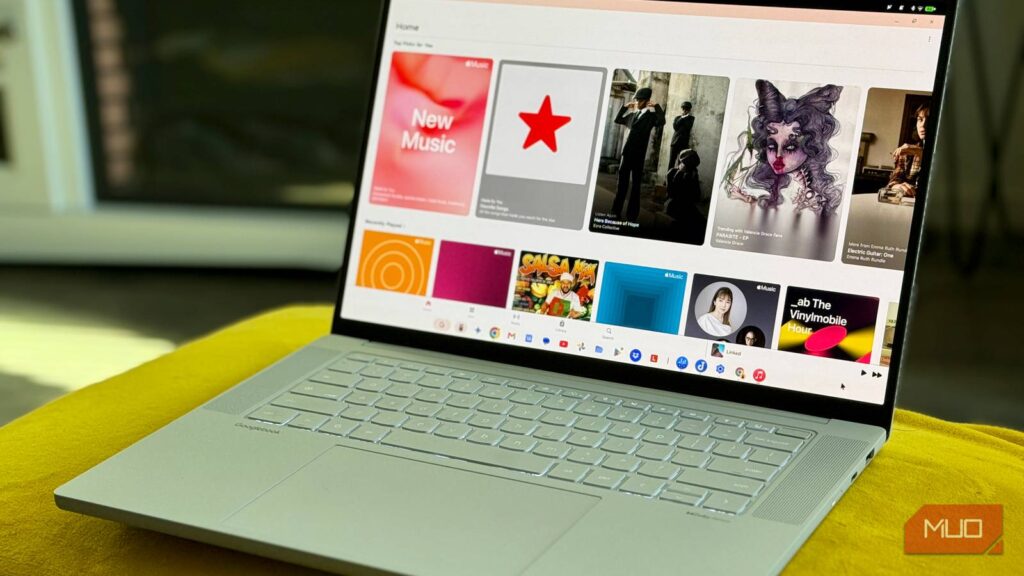
Google has published the Auto Update Expiration schedule that defines how long each ChromeOS platform will receive updates. ChromeOS devices receive 10 years of updates. For devices prior to 2021 that will receive extended updates, some features and services might not be supported after Googlebook OS was released on October 4, 2026. It is designed to merge Android and ChromeOS into a single platform meant to eventually replace ChromeOS.
For owners of older devices, the main issue is that older hardware (pre-2021) may not be eligible for the full update path, and you may be forced to give up certain features (such as Android apps) to maintain security.
Chromebooks released prior to 2021 that are eligible for extended updates can go the full ten years, but at a cost.
What does this mean for your Chromebook?
Google’s new auto-update policy impacts every Chromebook, Chromebox and Chromebase
The new auto-update policy means every Chromebook, Chromebox and Chromebase gets a full ten years of software support. Google works with component vendors every two weeks to test the software across different processors and Wi-Fi modules. Once a device has reached the end of that ten-year period, it will no longer receive any automatic security patches, bug fixes or browser updates. The device will still have the built-in verified boot which will self-heal if it’s been tampered with, but technical support goes away, the existing enterprise policies stop working as expected and apps that require a newer version of ChromeOS will eventually cease to work.
Older hardware simply can’t keep up performance-wise and security-wise over that period. For many older devices that opt into the Extended Updates path, Google has stated Android apps and Play Store access will be removed to maintain security and performance. Owners should back up Android app data before opting in — the About → Additional details screen and Google’s Auto Update pages explain eligibility and the opt‑in process. Enterprise administrators may follow Admin Console procedures for managed fleets.so opting for extended updates effectively removes support for Android apps and the Google Play Store.
Prior to opting in, you should, of course, back up any local files you have (including any Android app data). To back up your Android app data, you’d simply open each app and use any export or cloud sync option it has (if it has one) or manually transfer the files to Google Drive or some other external storage. This will ensure your personal files and app data are not lost as a result of the opt-in.

How to check your Chromebook’s update schedule
You can check your laptop’s expiry date really quickly. Head to the bottom right of your screen, click on the time, go into Settings and select About ChromeOS, then Additional details, and you’ll be able to see the exact update schedule for your platform.
You can either accept a significantly reduced feature set as the device is effectively ‘aged’ through the extended support period, or you can upgrade to a more modern machine. The days of having a budget laptop with software support are over forever. There are, however, still a number of things you can do to get a bit more life out of an old Chromebook. You could run the supported Linux apps (if you have a supported device), shift more of your working life to the web/cloud and off the device, or simply use it as a very basic device for media playback, for a guest to browse or as a secondary device for learning. All of those options can help to extend the life of a Chromebook after support has ended.
If you have an older Chromebook, check your device’s eligibility for extended updates, back up your data, and consider what features you might have to give up before you decide. It’s also a good time to start thinking about a future upgrade if you need to keep access to all the ChromeOS features.